
Building Energy Modeling in OpenStudio
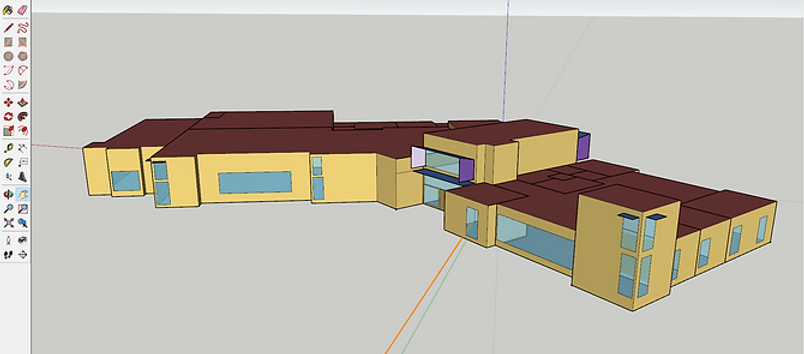
Building Energy Modeling in OpenStudio - Tutorial
Updated February 14th, 2025
In these YouTube videos we discuss the steps needed to create a building energy model using OpenStudio (and FloorSpaceJS, located within OpenStudio). We will be creating an energy model of a simple, rural fire station. The lessons progress from importing library files, creating geometry, setting site parameters, and creating schedules.
Building energy use is then calculated using the U.S. Department of Energy, EnergyPlus simulation engine via OpenStudio.
All software used for these calculations (SketchUp, OpenStudio, FloorSpaceJS, and EnergyPlus) are open-source and free to download.

1. Introduction to OpenStudio and EnergyPlus
4. Add Thermal Zones and Subsurfaces
14. Troubleshooting (Warnings and Severe Errors)
16. Add Domestic Hot Water System
17. Add Zone level Exhaust and Forced Air Furnace Systems
18. Add Zone level Basebaord and Unit Heaters and Packaged Terminal Air Conditioners
19. Add Dedicated Outdoor Air system
20. Review building performance by plotting EnergyPlus output variables using DView
21. Verify and adjust zone level air balance
22. Add transfer air to the model using EnergyPlus measures
23. Modify the building geometry using SketchUp-1
Table of Contents:
1. Introduction to OpenStudio and EnergyPlusShort description about OpenStudio and EnergyPlus. This video will introduce you to a little of the history of energy modeling and describe some of the computational capabilities of the OpenStudio program.
So the question is: What is open studio?
Simply put, OpenStudio is a graphical user interface for EnergyPlus.
But, before we can fully answer this question, we need to know what energy modelling is and a little bit of its history.
I won't go very far back, just to the most recent and widespread use.
In the 1970s and 80s computer programs were created to simulate building energy use with the goal of reducing energy consumption.
By the 90s, the US Department of Energy had developed a robust program, free to the public, for this purpose.It was called DOE-2. Unfortunately, it required a lot of coding knowledge.
They further developed a graphical user interface called eQuest.Today, eQuest is the most widely used program for simulating building energy use.
It is free, however updates are no longer supported.
In the 90s, the Department of Energy began developing the next generation of energy simulation program called EnergyPlus.
Today it is the latest, stable building energy simulation program.
It allows engineers, scientists, and the construction industry to predict and simulate how a building uses energy through its lifetime.
Energy Plus uses a lot of complex mathematical models to calculate energy use for a building.
In addition, just like DOE-2, it is a very obscure, programming language oriented, program.
Not very user friendly.
By the late 2000s, DOE realized that in order to get widespread adoption of the program they needed to develop a robust easy-to-use graphical user interface.
They developed OpenStudio.
OpenStudio is a graphical user interface for creating inputs to EnergyPlus.
The workflow starts with creating geometry using Floor Space JS, located within the OpenStudio program.
Alternatively, if you have complex geometry you can use SketchUp and the OpenStudio plug-in.
Or you can import geometry from IDF files GBXML files, SDD files, or IFC files.
Then you can assign space types and thermal zones to your 3d model.
You could think of this 3D model as a shell that will later hold all of your energy modeling information.
From there, you can modify the model by changing different parameters such as:
How many people are in the building.
You can change lighting power densities. You can change ventilation rates.
You can change schedules for occupancy.
You can change other schedules, like when the building is open or closed.
You can change water usage or how many people are in the building at one time during the day.
You can change the HVAC systems set points. Basically, anything you can do in an energy modeling program.
You can do it in an OpenStudio. It is a graphical user interface so it is very intuitive.
Once you are done assembling the model of the building it exports it out to EnergyPlus.
EnergyPlus crunches the numbers for you and delivers information about your building.
The final result shows you lots of information like:Total and monthly energy use.
Building envelope performance.Peak space and HVAC loads.
Peak water usage and ventilation.
2. Building Energy Modeling in OpenStudio - Importing Library Files
In this video, we discuss how to import library files into OpenStudio.
Today, we are going to create an energy model for a fire station.
First we will start with opening a blank OpenStudio project.
Then we will save this as a new project in your project folder.
We will call it example 4. Save this? Yes.
We have a blank project here. There are no space types.
You can see when I click the space type tab, there are no space types.
First, we want to take a look at the project floor plan.
This will show us what types of spaces we have in this project.
There is an apparatus bay, decontamination laundry room, turnout locker room, corridor, storage, shower, office and a community room.
Next, we will import a library file that has the necessary templates.
Go to: File- load library and browse for the library file.
We will use a previous project for a fire station as the library file.
Click open. Now the library should be loaded.
To see the imported information, you can go to the library tab in the upper right.
We are on the space types tab, so we need to look in the space types library.
Scroll down to find the fire station space types.
Drag and drop the necessary space types into the project.
OpenStudio uses space types to encode information about how particular spaces are used.
This information includes loads such as people, lighting, infiltration, and plug loads as well as their associated schedules.
I will now add all of the space types we will need for this project.
You may skip ahead to 3:14.
Now we have all of our space types. The next task will be to add in a Construction Set for our fire station.
Select the Construction Sets tab on the left hand side.
Again, go to the library files at the right, select construction sets, and browse for our imported fire station Construction template.
You may skip ahead to 4:30.
Firestation, metal, right here. This is going to be a metal building so we will drop this Construction Set into our construction sets for this project.
Allow it some time to load.
Okay. Now we have a fire station, metal building. The exterior walls are metal, concrete slab, and exterior roof is metal.
You will want to double check that these constructions match those of your current project .
Next we will go to the schedules tab.
You will notice that many of the schedules have already been imported when we brought in the space types.
Occupancies, activities, lighting, etc.
Okay. That is how you load information from a library file.
Next episode will use FloorSpaceJS to create the building geometry.
3. Building Energy Modeling in OpenStudio - Create Geometry
In this video, we discuss how to create building geometry using FloorSpace JS within the OpenStudio application.
The next task is to create the geometry for the building.
First we will save the file as a new file. It is always good to save revisions of files in OpenStudio.
That way you can always go back to previous versions if you encounter trouble.
Next, we will check our Preferences-Units to ensure that we are working in the English Imperial system.
Next, we will go to the Geometry tab on the left.
Then go to the top where the Editor tab is. We will be using FLOORSPACEJS to create the geometry.
Click New. There are several options to create geometry and use references.
For now, we will just create a new floor plan.
Next select the Import Image button to import the floor plan.
You will want to move the floor plan to wherever your origin is.
We will use zero-zero as our origin. Try to locate it as close as possible.
Next, you will want to scale the image. You will notice that I put a scaling dimension on the image.
This allows us to have a reference for how large the space is.
Scale the image by dragging on the corner to adjust it to 120 feet.
Next, click outside of the image to lock it in place.
We will want to change our grid units to one half of a foot. To create a new space we will click the rectangle button.
Click and drag to create the space. When you want to add a new space, click the plus button.
You will notice that that the cursor turns red when it locks on to the edge of a previous space.
You may skip to 4:30.
The community room is an odd shape. We will create it by using multiple rectangles without clicking the plus to add space button.
You can see that the rectangles are additive.
Now we have our spaces.
Next, rename the spaces to reflect what is on our floor plan.
Click the expand button. Space 1-1 we will rename to 101 as seen on our floor plan.
Go through and rename all of the spaces.
You may skip to 6:00.
Next, assign space types to each space. Click the drop-down arrow to select the space that is applicable to that room.
For space 101, this is going to be the Apparatus Bay.
Do this for all of the spaces.
You may skip to 7:00.
Next, assign construction sets to each space.
Since all the spaces are contained within the same building we only have one construction set.
For this example we are not going to do a pitched roof or a blow floor plenum.
Check the floor to ceiling height.
Check the plenum heights. For the Apparatus Bay there is no plenum.
For the offices, lockers, storage, etc. we do have a plenum.
The community room does not have a plenum. We will not have floor offsets.
Now we are finished. Click Merge with Current OSM.
Now select the 3D View tab on the upper left. Our model has been created and space types have been assigned.
Next video we will continue with creating subsurface geometry on the model and other assignments.
4. Building Energy Modeling in OpenStudio - Add Thermal Zones and Subsurfaces
In this video, we discuss how to add thermal zones and subsurface constructions to the building geometry using FloorSpace JS within the OpenStudio application.
Now that we have created the building geometry, our next task is to add thermal zones and sub surfaces.
Again, we will create a backup file. Save as version 3.
Next, go to the geometry tab. Select the editor tab. It starts in the floor plan tab.
We have completed the floor plan and geometry. The next task is to assign thermal zones to each space or a collection of spaces.
Select the assignments tab. Expand the thermal zones tab and add a thermal zone.
We will call this thermal zone 101.
We need to know how many thermal zones there are.
Looking at the mechanical drawings, you'll note that pretty much every space has its own thermal zone.
Starting with the apparatus bay will do thermal zone 101.
We can click the duplicate button to create another zone. 102 and so on.
You may skip to 2:22
Now that we have created the thermal zones, we can contract the thermal zone tab by clicking this upper right button here.
We can assign the thermal zones.
For thermal zone 101 we select thermal zone 101 and then we select the space 101.
Select thermal zone 102. Select the space 102. And so on.
Now that we have added the thermal zones, we can move on to adding subsurface components.
Go to the components tab on the top. Select it. The first component that we will add is this door.
The door is approximately 7 foot by 3 foot.
Select the drop down menu. Select door. Click the plus button.
You can expand the menu here and you will note that this is approximately a 3 foot by 7 foot door.
To place the door, just hover over the top of the space.
You will note that there's an icon showing a door here with the approximate size.
Click to drop the door in place. Next, we have to add these windows.
These windows are approximately 3 foot by 6 foot.
Just click the drop down menu. Click window. Click + to add a window. 3 foot by 6 foot.
The sill height is approximately 9 foot high.
Again, go to the space, hover over the location, and click it to drop the window in place.
Do this for all the windows and doors.
For this door, it will be a glass door. We will duplicate one of the doors and change the type to glass door.
Same situation with this door.
Finally the overhead doors. We will select overhead door type.
That completes the addition of the windows and doors.
Click the collapse button to collapse the tab. You can now see that we have placed all of the windows and doors.
That concludes our lesson for today.
You will want to click the merge button again to merge the geometry with the open studio model.
Click the 3D View tab to see the final product.
5. Building Energy Modeling in OpenStudio - Site Tab
In this video, we discuss how to add a weather and design day file to your project. We also briefly mention some of the other information located on the site tab including measure tags, utility bill year vs. TMY year info, Daylight Saving, and Life Cycle Cost parameters, and utility bills.
Our next task is to fill out the information on the site tab.
We will save the file as a new version.
On the site tab you will see various information related to weather. The first task is to set the weather file.
We don't have any weather files for this project, so we will have to download them.
Go to the EnergyPlus website. Browse for the location.
We will say this project is located in Medford. We will use the TMY3 file.
TMY3 is the most up-to-date weather file data.
Click download all.
We need to take the data that we downloaded and drop it into the OpenStudio folder.
Browse to your local disk, go to OpenStudio, and put it into the EnergyPlus folder.
It is Energy Plus weather files, but we don't have a weather folder so we'll create one.
Next, go to Set Weather File. Browse to the location where we put this put the weather file.
Select it. The weather file is an EPW file. EnergyPlus weather file.
Next, import the design day file (.DDY).
It is one of the files that we downloaded. Browse to the OpenStudio EnergyPlus weather folder.
Select the ddy file. OK. The design day file is used for sizing the equipment that is specified as "auto size" in the project .
You can go through and look at the design day parameters.
You can even change some of these parameters to to suit your needs.
Another thing to note on the site tab is these measure tabs.
These will be used for advanced energy modeling. You can select the climate zones, but we will discuss these later.
The other task on the site tab is to select by year.
If you are going to model your your building based on specific utility data you would select this button.
But we are going to model our building using typical metrological year data. So, we will select this button here.
Our location in Medford is subject to daylight saving time. We will click this.
Double check that the beginning and ending of the daylight savings time is correct for your area.
The Lifecycle cost tab up at the top can be selected. This is for cost analysis on projects.
We will not cover that at this time.
Next tab is Utility Bills. You will note that you should select the specific weather year if you're going to input utility bills.
We will click this just to show you.
Click calendar year. We are going to model our building based on the year 2000.
Go back to utility bills. You will see that now you can input utility bills.
We will do this at a future lesson. Go back and select first day of year to model based on typical metrological year.
That concludes our lesson for today about the site tab. Please hit like and subscribe!
6. Building Energy Modeling in OpenStudio - Schedules Tab
In this video, we discuss the difference between schedule sets and schedules, how to alter and add schedules, and some of the different schedule types.
Next, we will look at the schedules tab on the left. Up at the top, schedule sets tab.
This tab shows schedule sets. You can think of a schedule set as a collection of various different schedules.
This schedule set will be applied to a space type.
A schedule set has various different schedules for people and loads located within a space.
For the fire station schedule set, we have: People occupancy levels throughout the day.
People activity levels in watts of heat output per person. We also have lighting watt density levels that vary throughout the day.
Electric equipment, gas equipment, water, steam, and also infiltration.
You can drop a schedule into a schedule set just as easily as going to the my model tab or the library tab.
Then dragging and dropping. We will do an example for this storage room schedule set.
If we had a gas equipment load located within the storage space we would just simply grab a gas schedule and drop it into the storage schedule set.
That is an example, but we don't have it for this project, so we'll delete this.
Creating a new schedule set is as easy as pushing the plus button and renaming it to whatever schedule you want.
Then drag and drop various schedules into the schedule set.
Next, we will go to the schedules tab. These are the individual schedules.
Look at this one. Always on. This is a common type of schedule used for energy modeling.
It is used to override equipment to ensure that the equipment is in the on position throughout the entire year.
The default schedule for this is 1.
We can create a new schedule just by copying using the x2 button.
We will call this Always Off. To change the value to 0, hover over the line and type in 0, Enter.
Now this schedule is always off.
There are different types of priorities located within within each of these schedules.
For example: If you have a specific override for sizing equipment using design day values you can create a custom schedule.
It is used just for sizing the equipment during a summer design and the winter design schedule.
Let's look at a different schedule. Clothing schedule.
Here, the default value is 1. Basically everybody in the building is wearing long pants, long shirts, and coats throughout the entire day.
You will notice that there's also a priority schedule. Click it.
This priority schedule is applicable between May and the end of September. The summer months.
This schedule is saying that during this period people located within the building are lightly dressed.
They are not wearing coats and they are probably not wearing long pants. They are wearing lighter clothing.
If we wanted to create a custom schedule, during the spring period, we would click the plus button.
Just copy Schedule Rule 1. Add it to the project.
This is called Schedule Rule 2.
We will do this for the spring months.
During the spring days, people will enter the building with coats and heavy sweaters on. It is cold in the morning.
Later in the day, they will remove some of the clothing.
To split the schedule, simply double-click on the line. We will change the morning hours to 1.This means that the occupants probably have long coats and sweaters on.
Around mid-day, the occupants shed those sweaters and coats as it gets warmer in the building.
That is an example of how to change the schedule.
Let us create a schedule for a thermostat set point.
You can simply go to the library we previously imported.
Let's look for a thermostat schedule.
For the Apparatus Bay, the temperature will be held constant throughout the year at a freeze protection set-point.
Just drag this this schedule from the schedules library and drop it here.
You will notice that it was dropped into our list of schedules. The default value is to maintain the space at 38 degrees.
Basically, above freezing. You will notice that there are two different priorities on the weekend.
Saturday and Sunday. On Sunday the space is held at 60 degrees.
This could be for some sort of gathering during Sundays.
Likewise, on Saturdays, the space is raised up to 70 degrees. Basically room temperature.
They must have some so sort of closed, indoor community gathering on Saturdays.
Let us create an HVAC setpoint schedule for heating. Click the plus button. Select the type of schedule.
Temperature. Click Apply. We will call this heating HVAC.
The building is occupied 24/7 and operational 24/7, so this will be a simple schedule.
All we have to do is hover over the line and type in 70 degrees. Enter. Room temperature.
That tells the HVAC equipment to maintain the space temperature throughout the entire 24 hours of the day at 70 degrees.
Let's create another schedule, but let's copy this schedule.
Push the x2 button. We will call this cooling HVAC.
Change this value to 75. We will say that cooling has a night setback just to save energy.
Double-click on the line to create a break.
Hover over the morning hours and type in 80. Enter.
Double click on the other side of the line to create a break. Hover over it. Type 80. Enter.
This sets the thermostat back during the night time. The building is being cooled to a higher temperature.
During the daytime the building is actively cooled and the cooling system essentially shuts off at nighttime.
If you want to look at the schedule in more detail you can zoom in using these buttons down here.
15 minute increments.
You can see it starts at 7 and ends at 5. You can also adjust by dragging the vertical line.
You can zoom in further to 1 minute increments.
Let's say the cooling gets set back at 4:28 in the afternoon.
That is how you create a schedule. Let us say there is a time during the summer where the fire station is closed for one week.
Let us create a custom priority override schedule. Click the plus button.
New profile? Yes. Click Add, then select the priority.
We will use a June shut down. The first week of June.
For the first week of June we don't need any cooling at all. We will say it is all week long.
Select all of these days. You will notice as you select those days, it changes over here.
This purple shows where the active schedule (that you're working on) is affected throughout the entire year.
We will override this to 80 degrees. There.
That is an example of schedules.
There are other different types of schedules. Laundry activity schedule.
This is basically saying how many watts of heat the people in the laundry room are producing.
Lighting schedules. This says the lights go off at nighttime.
They turn on at 8:00 in the morning. Then then they shut down at about 5:00 in the afternoon.
Gas schedules are similar.
Infiltration schedules are a fractional schedule. They are a multiplier that's affects the total space infiltration. When applicable.
There is also lighting schedules. You will see that the locker-room lighting goes on and off a lot in this schedule.
This is probably because the firemen are going out to various different calls throughout the day and night.
They have to use the locker room to get suited up.
So that is schedules in a nutshell.
Please remember to click like and subscribe if you like this video.
7. Building Energy Modeling in OpenStudio - Construction Materials In this video, we discuss the difference between material sets, assemblies, and materials, how to alter and add them, and how to access the Building Component Library.
Our next task is to review and edit the construction materials.We will go to the constructions tab on the left. You will see at the top there are several sub tabs.
Construction Sets, Constructions and Materials.Each of these is treated as a child-parent relationship.
Construction Sets are a group of construction assemblies that will be applied to the building.
You can see that, in this construction set, fire station metal, we have exterior surface constructions.
For the exterior walls we have metal building, concrete slab and metal building roof.
Interior surface constructions consist of an interior wall, interior floor, and interior ceilings.
Ground contact surfaces are all concrete.Exterior subsurface constructions consists of windows and doors and skylights.In addition, there are interior subsurface constructions. For example if you have interior partitions with windows or doors.
At the very bottom there are other constructions that may be applied.
A construction set defines a collection of constructions that make up the building.
They can be applied to the building or portions of the building. Next, let's look at the constructions tab.
The constructions tab shows construction assemblies. We will look at the first one.Metal building roof.
The metal building roof is comprised of metal roofing and roof insulation.You will see that these materials are applied in layers.
They will be used to calculate the thermal conductivity and heat transfer properties of this construction assembly.
The layer starts on the outside, metal roofing, and moves inward. Roof insulation, inside the building .
You will notice that there are measured tags. Recall we discussed these measured tags are located throughout the project.
These are for advanced energy modeling.Basically, you can apply measure tags to anything within OpenStudioAt the very end, you can use those measure tags as keywords that energy efficiency measures (EEM) can use.
The EEM can be applied to the project and automatically calculate how a building might be different if various variables are changed.
That is for advanced energy modeling. We will discuss that later. First, let's look at this metal roofing.
This metal roof is comprised of metal roofing and roof insulation 22.In order to find out what this roof installation 22 is, we need to go to the materials tab.
Select materials on the left, drop-down. Roof insulation 22.You can see that this roof insulation material also has measure tags. And it has thermal properties.Roughness. How thick it is. Thermal conductivity.
Density. Specific heat.Thermal, solar, and visible absorptance. You can see that the thermal conductivity and thickness combined together create an R-27 thermal resistance.Let us take a look at our project.
Our roof is composed of metal roofing, a thermal break spacer, and steel purlins plus insulation.Let us edit this roof assembly.
We will justWe are not going to be using this roof insulation for any other assembly, so just rename this: Purlins and Insulation R-29.
You will notice that the purlins plus insulation is approximately 10 inches thick.It has an r-value of 29.88 which is a 0.0028 thermal conductivity.
Let us change this 10 inches thick.0.0028 thermal conductivity. Now we have edited that construction material.Next, we also have to create that thermal break.
Duplicate this construction material. Select x2 and we will call this thermal break R-3.Looking at the thermal break, we have an R value of 3. It is basically 1/2 inch thickness and 0.1167 thermal conductivity.
Now that we've created those two materials, let's go back to the construction assembly for the metal roof.Select the constructions tab.
You will notice that we start with metal roofing, but then it goes directly to the purlins and insulation that we just edited.We need to put this thermal break in between.
First, let's delete this. Click the X. Next, go to my model, materials, and find our thermal break.
Drag it from our my model library and drop it into the construction assembly.You may have to click another assembly to refresh.
Click roof metal building again.You can see that it has been put in place. Select the purlins and insulation layer.
You can see that our metal building roof has been edited to include metal roofing, a thermal break, and purlins and insulation with an R-29 value.
That is how you edit materials and material assemblies.Rename this to simply Roof Metal Building.
If you go to the construction sets tab, you can see that it will automatically be updated because we just edited that construction assembly.
Roof Metal Building.If you do not want to go through the process of creating your own materials and assemblies:Look in the library files to search for a construction set that suits your needs.
The process is as simple as dragging and dropping in place.Go to constructions. Search for a roof.
We'll just use this as an example: R-31...R-25.We will just use this is an example.
Drag it and drop it into place.Now our construction set uses this roof instead of the roof we just created.
But we won't use this.Go back to my model, select constructions, drag roof metal building into place.
Similarly, you can do that for windows, doors, walls, and floors.If you do not have a material you are looking for, in your local libraries, you can search the building component library.
Go up to the top drop down, components and measures, and select find component.If you do not have the building component library access on your computer, you will need to register online.
Once you have registered online, the building component library will provide you with an authorization code.
Copy the authorization code, paste it into your BCL authorization key, and click OK.
This will give you access to the building component library onlineIt will take you to a new screen that allows you to search the building component library.
Suppose we wanted a window on the building component library that we don't have in our local library files.
Click the drop down on construction assemblies, fenestration, windows.You can search the online library for the specific windows that you are looking for.
Let us just select this one. Window, metal framing, all other, complies with 189.1 2009, residential, 2A climate zone.Click the check button and click download.When it is done downloading, you can close this window.
Next, go to your library tab, select constructions drop down, and search for the file that you downloaded.Right here.
We can use this and drop this into any one of the window categories.We will just use it for fixed windows for this project.
There.You can see that this is a building component library component because it's denoted with a BCL.
That is constructions, construction sets, and materials. Thank you. Please like and subscribe!
8. Building Energy Modeling in OpenStudio - Buildings Loads
In this video, we discuss the various thermal, electrical, gas, and water loads specified for the buidling. We will do an example of how to create a new load and how to import a load from a library file.
Next, we will look at the loads inside our building.
Select the loads tab on the left. These are all of the heat, electrical, gas, and steam loads located within the building.
There is also an internal mass definition for calculating thermal mass based on density of materials located within the building.
First, let's look at people definitions.
These are our occupant densities located within various spaces.
These loads calculate the number of people within a space and how much heat output each person provides to the space.
Also, carbon dioxide and what fraction of their heat they provide is radiant heat.
You can specify the occupancy by number of people, people per floor area, or floor area per person.
Let us look at light definitions.
Light definitions can be specified based on power, power per floor area, and power per person.
You can also specify what fraction is radiant,visible, and how much of that affects the return air to the HVAC system.
Let us do an example of adding an electrical equipment load.
Let us say we have a microwave located within the closed office.
Currently, the closed office does have an electrical equipment definition.
This is probably for printers, computers, and some other task lighting equipment.
We will use this as a template. Click the x2 to duplicate.
Rename this to Office Microwave.
The microwave is probably designated in watts. It's a 1200 watt microwave.
You can see when we changed it to watts, it actually deleted the watts per floor area value.
That is simply how you create a new space load.
However, the load itself has to have a schedule.
We will have to create microwave schedule located within schedules. Go back to the schedules tab.
Click + to add new object, schedule, fractional schedule.
Fractional indicates how much the microwave is being used throughout the day. Click apply.
Rename it to Office Microwave Schedule.
We will say the microwave is really only used for a few minutes at a time.
Probably during the morning hours. Only for several minutes.
You may skip forward to 6:00.
Used during lunch time and in the evening.
Just use the default schedule for simplification.
That is how you create an office microwave schedule.
Later, we will apply this schedule and the load to our space type.
Let us go back to the loads tab. There are also other loads that will be applied later in the project.
That is how you create a space load.
You may also drag and drop loads from your loaded library files.
Go to the library tab. We'll do an example of a light definition.
Scroll down to light definitions. Browse for the lighting load definition that you would like.
We will just use this here. Mid-rise apartments, corridor lights. Drag and drop the definition from the library.
You will note that it has been added to our project.
Again, you will have to create a schedule for this, because later we would assign this load to our space.
But for now, we won't be using this.
We can use the Purge All Unused Objects button down here to purge all unused definitions that are not being applied for this project.
Or you can select this particular load and just click the
X button to delete it. We will purge unused objects.
Using the Purge All Unused Objects button helps us reduce some of the clutter in our project.
It is good practice to go through some times and just double check that you haven't got a lot of unused items. *Oops! Be careful not to purge items that have not been assigned to spaces!*
That is the loads tab. Thank you. Please like and subscribe!
9. Building Energy Modeling in OpenStudio - Space Types
In a previous video, we imported space types for our project. In this video, we will revisit the space types tab and discuss how building constructions, loads, schedules, and infiltration are assigned to a space type.
Next, we will revisit the space types tab.
Select the space types tab on the left.
This is where we originally assigned space types to this project.
If you would like to recall how to install space types, please review the previous video.
Looking at these space types, you will notice that there is a default construction set, but it is empty.
We need to assign a construction set to all of these spaces.
Go to the my model tab.
Drop down construction sets.
Drag and drop our single construction set.
To apply that construction set to all of the other space types. Click the check boxes.
Select the construction set you want to copy. Click Apply To Selected.
It automatically populates the construction set to all of the space types that were selected.
This construction set is basically saying what type of constructions these spaces will have.
You can customize these by creating additional construction sets.
To create additional construction sets, please see the previous video.
Next, you will notice that the space type has a schedule set and an outdoor design specification outdoor air.
This is the ventilation specification. It tells the energy model how much ventilation is required for that space.
On this column, you will see space infiltration design flow rates.
The space infiltration design flow rates are also specified.
You can change the flow rates based on floor area, total space, exterior surface area of roof and walls, exterior walls, or air changes per hour.
To create a different infiltration rate, just rename it and change the values to what you want.
Similarly, you can copy those just like we just did with the check boxes.
We will apply an infiltration rate to the space plenums.
You can see the final column is a Space Infiltration Effective Leakage area.
We will not be using this, but I will illustrate how to find information about this input for the program.
Search for Space Infiltration Effective Leakage Area in your browser.
You are going to want to look for Big Ladder Software or EnergyPlus input/output.
We will look at Big Ladder Software because they have the EnergyPlus input/output located online (HTML).
Next, select Effective Leakage Area or you can click the link.
This describes what the Effective Leakage Area is.
Essentially, it is saying that this is a different way to calculate infiltration rates and it is normally used for smaller residential type buildings.
We will not be using this for our project.
We will only be using Space Infiltration Design Flow rates.
Next, you can go to the loads tab up at the top to see what type of loads have been applied to the each individual space.
For our Apparatus Bay, we have lighting load definition and an associated schedule for lights.
Likewise we have electrical equipment loads. This is the definition and this is the schedule.
We also have the same for infiltration. A load name and the schedule.
You will recall in a previous exercise we created a microwave load.
That was to be applied to the closed office.
You will note that there is no microwave load on the office so we will have to drag that into this space type definition.
Go to the my model tab. Browse to electrical equipment definitions.
Locate the microwave in the Electric Load
Definitions.
It appears that we may have deleted our microwave load definition. Or, we purged it in the previous exercise.
Let us add that back into our loads.
Select the loads tab, electrical equipment definitions, copy this, rename it.
Next, go back to the space types tab.
Select loads, scroll down to closed office, go to my model, electric equipment definitions.
Drag and drop the microwave into the closed office space type.
You will note that the microwave has been automatically assigned the fire station equipment schedule.
We need to change this to the microwave schedule that we created.
Go to my model and browse down to the rule set schedules.
Look for the microwave schedule that we created.
Drag and drop that next to the microwave load that we installed.
Now the microwave load and schedule has been applied to that space type.
You can see this has a multiplier.
This is used for fine-tuning a model without having to change loads or schedules.
If we discover that the microwave is actually being used half as much as what what we thought, we can change this value.
The energy model will automatically apply a 1/2 multiplier to it.
We will not do that here.
You will note that the default values are green and any overridden values have been changed to black.
That is how you add loads and loads schedules to a space type.
There is a filter button up here. For very large projects that comes in handy.
For example if we wanted to just look at occupancy loads we can filter by people.
For lighting loads, we can filter by lights.
Up at the top, the Measures Tag tab also is comes in handy for advanced energy modeling.
As discussed, these are keywords that energy efficiency measure (EEM) programs use to change the energy model.
They are use it to see how it affects energy use of the building.
The Custom Tab, I believe, is used for custom programming.
I will briefly discuss how to create a new space type.
Click the + button. Rename the space type to what you would like. We will call this Workshop.
Next, apply a construction set. Apply a schedule set. Apply a specific outdoor air.
We will just copy or we can select a different one.
Let's go to the library tab, specification outdoor air.
We will just do mechanical room ventilation.
Look for an infiltration design flow rate.
Look for mechanical room...
How about Utility.
Next, go to the loads tab.
Locate your new space type, Workshop. Drag and drop loads into the space.
This will be a Machinery room so we won't have a people definition.
We will do lights definition, storage and electrical equipment utility.
Finally, we want to assign an electrical equipment schedule.
To do that, go to my model, rule set schedules.
We will just say that the electrical equipment is always on.
That is how you create a space type.
To delete it, simply push the X button at the bottom.
Sorry.
Click the checkbox and then push the X button.
Thank you. Please like and subscribe!
10. Building Energy Modeling in OpenStudio - Geometry Tab
In a previous video, we created our building geometry. In this video, we will revisit the geometry tab and discuss additional features for viewing and editing the 3D model with FloorspaceJS.
Next, we will go to the geometry tab. At the first tab is 3D view, in geometry.
This allows you to inspect the building model. Using the right mouse button you can pan the model across the screen
Using the middle mouse button you can zoom in and out. Using the left mouse button you can rotate the model.
Over here are some additional controls. Changing the orthographic control changes the perspective of the model.
This can be useful for selecting specific items based on a view.
Let us do the X view. You can see that without orthographic turned on, it shows a more perspective view.
Next, there's some additional functions that act as filters or rendering. Right now we have it rendered as a surface type.
You can see that the roof is colored a beige color. The walls are brown. Glazing and glazed glass doors are a more transparent color.
The overhead doors are a dark brown color. The ground floor is a gray color.
If we change the render mode to “normal”, this is for rendering based on how the surfaces are oriented.
Right now all of our surfaces are oriented properly.
Let's get rid of walls. You can see that all of the outside surfaces are gray and all of the inside surfaces are red.
If one of our surfaces was accidentally flipped, we would see it show up as red on the outside.
That tells us that we need to correct its orientation in the geometry editor.
Next, if we go to boundary rendering, this shows you how the energy model will be rendering.
How the energy model will treat the surface. Most of the blue is an exterior surface.
Let us get rid of walls. Again, you can see that the interior surfaces are green.
Let us get rid of roof. The interior walls are green. The interior floor is brown. I'm sorry the the ground floor is brown.
All of the exterior wind exposed and sun exposed surfaces are blue.
Next, we'll look at render by construction. This tells you what type of construction it is.
The purple are windows. The teal color is an opaque door.
We also have glazed glass doors which are colored white. The exterior walls are a grayish Brown.
The roof is colored pink and the ground floor is colored Olive.
This will help you tell if you have additional construction materials located throughout the building that have been specifically assigned to specific spaces.
Next, let's look at render by thermal zone. This shows you all of the thermal zones located in the building.
These these are the thermal zones that we assigned in the very first lesson.
You can also see if there are different spaces, but there they might be combined into a single thermal zone.
Next, we will look at space types. This renders by space type. you can see the Apparatus Bay is green.
All of our plenums are a dark red color. We also have storage space, office space, locker, restroom spaces, and a community space.
We can also render by a building story. However, for this example we only have one building story so it only shows one color, green.
As discussed, you can also apply filters such that you can't see certain surfaces or sub-surfaces.
If we wanted to get rid of the roof we would uncheck the roof so we can see inside the building.
Let us switch back to render by surface type. Likewise, you can remove the doors and windows.
If you do have shading objects in this file, you can hide them.
But we don't have that in this model. That will be a for a future lesson.
If you have partitions located inside the model, for example office cubicles, those would show up here and you can hide those.
We don't have those in this model. Finally, you can click this button to show as a wire wireframe.
Although I don't know how to use this.
Next, let's go to the editor tab. We will discuss some of the additional functions of FloorspaceJS.
Let us do an example for this space here. It is actually comprised of two separate spaces but we originally just created one large storage space.
Let us split this into two. First, we will want to delete this space 105/106 as well as the plenum 105/106.
Next, we want to draw in a new space. Click the plus button. We will use the polygon tool this time.
Click to begin the polygon, click, click, click, and to complete the polygon click at the very first spot.
Next, create the tools 106 room. Whoops. Messed up. Let us use the undo button.
Create one more space. Next, we will have to rename these and add in the plenums. Space 1-1...
Okay, it appears that the program is moving slowly, or it's even frozen.
We can wait for it or we can try a different approach. Let us go ahead and reopen this.
Go back to the geometry tab. You can see that none of the changes were changed on this.
Click Save and go to the file folder of the project that you're working on.
Go to the open studio folder where all of the project files are located. Find the floorplan JSON file.
Open it in a text editor. Change this show import/export to read TRUE.
Save it. Then we will open this floorspace JS file using an online version of floorspace JS.
To do that, open a web browser. Browse to unmethours.com.
This will be a good exercise to show you how to troubleshoot problems.
Unmethours.com has a lot of people that use OpenStudio and EnergyPlus for energy modeling.
If you have questions, it has probably already been answered on unmethours.
We will just search for “FloorspaceJS freezing”. Select this topic. You can read through it.
Basically, FloorspaceJS development team has created an online version of Floorspace JS.
It uses Javascript, so any web browser can open it.
We will open this link to FloorspaceJS and we will open our file.
Browse to the project folder where the file is located. Click open. Now we can see our floor plan.
Delete this plenum. I'll show you additional functions that FloorspaceJS has.
We are editing these two storage rooms, so let's use the eraser this time.
I'll show you how the eraser works. Simple as that. It erases the space.
Then, we will go back to the polygon tool...well...sorry let's duplicate this storage room.
Then we will go to the polygon tool to create a new storage room. The duplicate tool is very powerful.
It allows you to duplicate all of these items that were filled in before, so that you do not have to refill those in.
We have now split this room into two. Next, go to assignments.
Let us see. We will have to create a new thermal zone for this new space.
There. Let us go back to floor plan now. I'll show you some additional functionality that FloorspaceJS has.
If you wanted to create another story for the building, simply use the duplicate tool.
It places the next story right above the first story. You can edit the attributes of the stories using the expand button.
An additional function that FloorspaceJS has: this fill tool.
If you have a story above another story, you can use the fill tool to simply copy the previous space below up to the space above.
This Apparatus Bay, on Story 1. If we just click the fill tool, and click, it creates another Apparatus Bay above, in Story 2.
We can expand this and look at the space. Oh. Excuse me. It just creates a space.
You will have to go through and fill in space type, construction set, thermal zones.
For this project, we won't be using a second story, so we will just go ahead and delete story.
Ok. Once you're done editing the floor plan, we can go up to the top and click Save Floorplan.
Click download. This will download into your downloads folder.
Next, go back to the project folder where your OpenStudio files (and .json file) are located.
Go to your downloads folder. Cut and paste this .json file into your OpenStudio folder.
We will want to replace the file.
Next, go back to OpenStudio and reload the project. Go back to geometry tab. Go back to editor.
Okay. You can see that these are the spaces that we created using the web browser version of FloorspaceJS.
We will just do a preview. This is good to hit. This button...it...
I am not sure what it does, but it refreshes the 3D model. You can see that those spaces have been added.
We will click close. Merge with current OSM. Click OK.
Now we can go back to the 3D view and we can see that those spaces have been edited.
The last task: go to spaces tab. We will rename those spaces that we created. this one was 105.
This one was 106. This is 106 plenum. This is 105 plenum. Go to thermal zones tab.
You will see that FloorspaceJS created a bunch of extra thermal zones. I'm not sure why.
It is a glitch.
You can simply get rid of those by doing purge unused objects.
Finally, we will save the OpenStudio file. Go back to geometry tab. Review our geometry.
You can see that the floor plan has been edited.
Thank you. Please like and subscribe!
11. Building Energy Modeling in OpenStudio - Facility Tab
In this video, we will discuss how to orient our building relative to North. We will set defaults for space, constructions, and schedules. We will add exterior lighting. We will also briefly discuss adding stories to the building and adding shading elements.
The next tab is the facilities tab. Go to the left and select the facilities tab.
On this tab you can change the building name. We will call this Rural Fire Station.
Next, you can see there are measures tags, just like we discussed previously.
Energy Efficiency Measures (EEM) can use these as keywords to change parameters of the model.
That is for advanced energy modeling. Next, you can see the north axis as set at 0.
Going back to the geometry tab, we can see that the north axis is currently set on this green axis line.
If we wanted to orient the buildings such that the north axis was on the red axis line, we would have to adjust this by 90 degrees.
Going back to the facility tab, you can change this to 90 degrees.
Next, you will see that there are three different defaults that you can add from your libraries.
This is the power of OpenStudio. OpenStudio fills in information from a top-down approach. Parent-child relationship.
This is the very top. At the very top, you can fill in space types, construction sets, and schedule sets.
I went through and deleted some of the information in our file to illustrate this example.
Let us go to spaces. You can see in the spaces tab that I have removed some of the information.
Space type for the Apparatus Bay is not there. The default construction set and the default schedule set is not there.
If we go back to the facility tab and add those into the top, all of that information will be defaulted to these default values.
Go to my model tab, space types. We will say the default space type is an Apparatus Bay.
Construction Sets. We only have one. Metal fire station. Schedule sets. We will just use the default fire station schedule set.
Go back to spaces.
You will note that the space type for the Apparatus Bay has been populated but the default construction set and schedule set have not been populated.
That is because all of these are empty and they will use the defaults for the facility.
The ones that we just dropped into this space right here. These spaces.
Let us go to the stories tab.
You can add additional stories to your building if you haven't already done those using FloorspaceJS or some other different geometry editor.
Let us go to the shading tab. The shading tab is used for adding additional geometry to your model that is not actually within the building.
It does not affect and does not create exterior loads such as lights or exterior equipment.
You could think of shading as adjacent buildings and trees that shade the building throughout the day.
Shading would reduce cooling loads.
We will not be using shading in this model. We will do that in an advanced lesson.
Let us go to exterior equipment. Here is where you can add exterior lighting to your building.
Let us say we have a couple of small lights on the exterior for security.
Click the + button to create new exterior lights. It automatically populates it with a load definition.
Click the load definition and we will say that total wattage is 400 watts for exterior lights.
Next, go to schedule. The default schedule is set for always-on. Discreet.
If you wanted to edit this schedule, you can go to the schedules tab and modify it.
Next, we will look at the control option. Control option specifies that the lights go on based on the schedule only.
Alternatively, you can select astronomical clock. Using this combines the two.
So you will have a lighting schedule for the lights going on and off and the astronomical clock will override that schedule if it senses daylight.
Thus, turning the lights off during daylight hours.
The astronomical clock is a photocell that shuts the lights off during daylight hours.
Next, you can do a multiplier just like we have multipliers elsewhere. This will multiply the wattage.
And, there is an end-use subcategory. The end-use subcategory is used for sub-metering.
If we wanted to have an additional electrical meter to track the energy use for the lights, we can rename this to general ext lights.
That is the facility tab. Please like and subscribe! Thank you.
12. Building Energy Modeling in OpenStudio - Spaces Tab
In this video, we will discuss the parent-child-inheritance relationship of OpenStudio entities. We will also show how to edit spaces, loads, surfaces, and sub-surfaces at the lowest (space) level of the energy model.
Next we will discuss the spaces tab. Up at the top we will start at the properties tab.
This is a list of all of the spaces that you have in the project.
As discussed in the previous video, these empty spaces will be filled in by information collected from the next level up.
The spaces tab is basically the lowest level there is.
So, if there is a particular space that has a particular load or construction type, and it's not the same as all of the rest of the spaces, then you would insert it here.
If you go to the air flow button, you can see infiltration and outdoor air object
names.
These were edited in the previous video when we discussed space types on this space type tab.
Again, all of this information will be populated from a higher level of information source.
Let us go to the loads tab. This shows all of the information that has been collected from higher level information sources.
If we had two different spaces there were exactly the same space type; for example our storage rooms 105 and 106.
But, if only one storage room had a microwave we could simply drag and drop the microwave into that space.
Go to the my model tab equipment definitions, microwave, and you can drag and drop it to the space 105.
Likewise, you would have to do the schedule for the microwave as well.
So, that differentiates this storage space from this storage space.
But let us delete this example.
Next, we can go to the surfaces tab at the top. The energy model is comprised of surfaces and sub surfaces.
Surfaces are the main surfaces of the building walls, roofs, floors, and ceilings.
Let us look at this. This is the Apparatus Bay. Let us say this apparatus Bay had a different roof than all of the rest of the building.
If we go to the library tab and look for constructions we can apply a different roof type to this apparatus bay.
You can see that it is now changed and it is not green anymore. It is black.
We have overridden this default value. If you want to return it to the default value, select the item and then push the X button up on the top right.
You can see that it's now returned to the default value. you can do this for all of the surfaces.
You can also do it for sub surfaces. Go to the sub surfaces tab at the top. Sub surfaces are all of the windows, doors, and skylights.
Also, interior windows and doors. On the building, sub surfaces are treated as children of surfaces.
Here, we can double check the constructions of all of our sub surfaces. For the overhead doors, the construction type is empty.
This means that we have not defined a construction assembly for overhead doors.
Let us go back to the constructions tab and take a look. If you look at exterior or subsurface constructions, overhead doors is missing.
We can choose to apply these overhead doors constructions from the construction set, which governs the entire project.
Or, we can apply that construction assembly just to the apparatus Bay by going back
to the spaces tab and editing these sub surfaces.
Go to library, constructions, and browse for a door type or alternatively you could create your own. Drag-and-drop in place.
Applying constructions that this sub surfaces level on the spaces tab applies it to a single, individual component of the entire building.
So, for these overhead doors, we will apply these at this level.
To copy to the other overhead doors, simply click the checkboxes, highlight the item, apply to selected.
Let us look at the other assemblies. Glass doors. It looks like glass doors are also not
defined.
Let us got back to our constructions tab. Glass doors. These are also not defined.
To define the glass doors for the entire project, go to my model tab and browse. We will just browse for a typical window.
Let us just use this one. This will apply to all the glass doors in the entire project as long as this construction set is set as the default construction set on the facility tab.
Going to the spaces tab again we will look at sub surfaces and scroll down. You can see that those boxes have been filled up with the default glass doors.
Some of the other buttons up here are for additional energy modeling. We will cover those in a later lesson.
Selecting interior partitions tab at the top allows you to edit interior partitions. We don't have these in this model.
Interior partitions are usually modeled as partial height walls. For example, like an office cubicle. We don't have these in this project.
The shading tab is also at the top. We don't have shading, but if we had individual shading objects we could edit those on this tab.
That is all for the spaces tab. Thank you. Please like and subscribe!